How Do You Move Squarespace to WordPress Without Losing Traffic?
- November 14, 2026
- 7 min read

WordPress and Shopify Developer
To move Squarespace to WordPress, save a list of every old address, export the one WordPress file Squarespace offers, import it, copy every image into the WordPress media library, rebuild what the export leaves out, and set a 301 redirect for each address that changes. Only then point the domain at WordPress. Keep the Squarespace plan running until the images and redirects check out, because images left on Squarespace's servers stop loading once the site is cancelled.
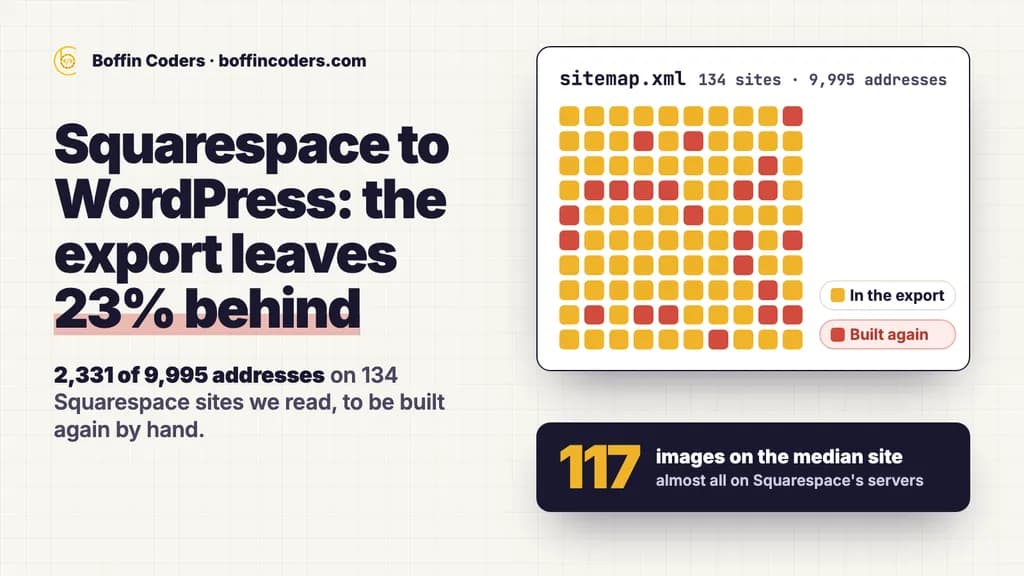
The export is the smaller part of the job. On 12 November 2026 we read the sitemaps of 134 Squarespace sites run by businesses that Google Maps lists in eight cities across the US, the UK, Canada and Australia: photographers, yoga studios, interior designers, therapists, florists, accountants, dentists and plumbers. On 71 of them the export would carry every address. On the other 63, part of the site sits on a page type the export leaves out, and across all 134 the export would leave 2,331 of 9,995 addresses (23%) behind, to be built again by hand. The median site also lists 117 images, and almost all of them sit on Squarespace's servers.
What the 134 sites had | Sites | Addresses | In the export? |
|---|---|---|---|
Layout pages | 134 | 3,153 | Yes |
One blog, the largest where there were several | 64 | 4,369 | Yes |
Every blog after the first | 13 | 310 | No |
A store | 30 | 795 | No |
Portfolio pages | 20 | 457 | No |
Calendar pages | 8 | 711 | No |
Index, cover and course pages | 10 | 58 | No |
Images listed in the sitemap | 134 | 45,965 images | Not as files |
What comes across when you export Squarespace to WordPress?
Layout pages, one blog with its posts, and text and image blocks come across when you export Squarespace to WordPress. Anything built on another page type stays behind. Squarespace's export guide lists both sides:
- In the file: layout pages, one blog page with its posts and up to 1,000 comments a post, text blocks, image blocks, and the text of embed and Instagram blocks with minimum structure. Gallery pages export on version 7.0 sites only.
- Left out: store, portfolio, calendar, album, index, cover and info pages, every blog after the first, dropdowns, audio, video and product blocks, drafts, page-specific headers, footers and sidebars, style settings and custom CSS.
The file comes in WordPress's format whatever you plan to do with it. If your site has more than one blog, Squarespace asks you to pick one, and only that one exports. The site must be published and public, and a trial site cannot export at all.
A store has its own way out. Squarespace exports up to 10,000 products as a .csv file from the Products panel, but the file leaves out featured images, variant images, image alt text, customer reviews and additional product information. The products move as rows of text, and every product picture goes back on by hand or by script.
If you are still choosing between the two platforms, the Squarespace vs WordPress comparison sets cost, upkeep and ownership side by side.
How do you move Squarespace to WordPress, step by step?
You move Squarespace to WordPress in eight steps. The order matters more than the tools: the list of old addresses comes first and the domain switch comes last, whether you transfer Squarespace to WordPress yourself or hand the job over.
- Save the list of old addresses. Open
https://www.yourdomain.com/sitemap.xmland save it. Squarespace builds it from your pages, but it leaves out disabled pages, pages hidden from search, password-protected pages and uploaded files such as a PDF menu, so add those from your own notes and from Search Console. - Set up WordPress on a test address. Choose the permalink structure before you import. If your posts live at
/blog/post-name, the custom structure/blog/%postname%/keeps the same path. - Export the file. In Squarespace, open the Import & export content panel, click Export, then click the WordPress icon. Pick the blog to export if there is more than one, wait for the export to finish, then download the .xml file.
- Import it with the WordPress Importer. In WordPress, go to Tools, then Import, then WordPress. Run it on the test site first: the plugin's own page says it has not been tested with the latest three major WordPress releases, and a large file can hit your host's memory limit.
- Copy every image. Search the imported pages and posts for
squarespace-cdn.com. Each match is an image Squarespace still serves. Download it, upload it to the media library and swap the link. - Rebuild what stayed behind. That means the store from the product .csv, the other blogs, portfolios, calendars, forms and the design.
- Write the redirects. Map each old address to its new one with a single 301 redirect, then open every old address to test it.
- Switch the domain and watch. Point the domain at WordPress, submit the new sitemap in Search Console, and keep the Squarespace plan until every page, image and redirect checks out.
When we rebuilt timezones.in, our own site, we counted its sitemap before and after the move, as in step 1: 10,722 addresses before and 10,723 after, none lost.
Why do images break after a Squarespace move?
Images break because the imported pages still point at Squarespace's servers. Squarespace's export guide says the WordPress Importer might not copy them: WordPress can keep links to the copies on Squarespace, and those links stop working when the Squarespace site is cancelled. Its two fixes are importing into WordPress.com, which copies the images to WordPress's servers, or downloading the images and uploading them yourself.
The median site in our check lists 117 images in its sitemap. Of the 134, 76 list 100 or more, and the largest lists 3,108. Each image has to be downloaded and uploaded again, or the new site keeps loading it from Squarespace until the plan ends.
There is no redirect to fall back on. Squarespace's URL mappings guide says image and file addresses cannot be redirected, because they sit on its content delivery network. A link from another website to one of your images or PDFs cannot be pointed at the new copy, so the copying has to happen before you cancel.
Which addresses need a redirect when you migrate Squarespace to WordPress?
Every address whose path changes needs a 301 redirect when you migrate Squarespace to WordPress. Pages usually keep their path. Blog posts, products and dated posts often do not.
Old Squarespace address | What changes | What to do |
|---|---|---|
| Nothing, if the WordPress page keeps the same slug | Open it and check it answers |
| The blog does not sit at | Match the base in the permalink, or redirect |
| The post address carries a date | Redirect each post to its new address |
| Store addresses on version 7.1 carry | Redirect each product to its new page |
Three of those rows turned up often in our check. Of the 88 blogs we found, 48 do not sit at /blog (names such as /blog-1, /articles and /journal), so the WordPress permalink has to use the same base, or those posts need redirects. Dated post addresses showed up on 17 sites, 564 posts in all. On 15 of those sites the month or the day has no leading zero, as in /blog/2016/3/1/post-name, while the WordPress tags %monthnum% and %day% always write two digits (/2016/03/01/). So even a dated WordPress permalink gives those posts a different address, and each needs a redirect. Store addresses with /p/ in them showed up on 25 sites.
Google's site move guide asks for a mapping from every old address to its new one, and says to keep the redirects for as long as possible, generally at least a year. When this website moved off WordPress, its old addresses came from the not-found export in Search Console: 322 URLs, covered by 178 permanent redirects, 139 exact and 39 patterns.
What does a Squarespace to WordPress migration cost?
A Squarespace to WordPress migration costs what the rebuild costs, because the export itself costs nothing. Count three things in your sitemap before you ask anyone for a price: the addresses outside the export, the images and the redirects. A site of layout pages and one blog is mostly import and checking. A store, extra blogs or a portfolio are built again item by item.
Then add what WordPress costs to run: hosting, a domain, any paid theme or plugins, and someone's time for updates each month. Our guide to website maintenance cost breaks that month down.
With us, the invoice comes after you see the work on the new site. If you would rather have the move done for you, our WordPress migration services start from the same address list and end with a comparison of the old sitemap against the new one.
Keep reading
Santosh K Sharma
WordPress and Shopify Developer
Santosh K Sharma builds and maintains WordPress and Shopify sites, from theme and plugin work to store migrations and performance fixes. Santosh K Sharma writes about keeping client sites fast, current and easy to manage.
Frequently asked questions
Yes. You can export Squarespace to WordPress as one .xml file from the Import & export content panel. It carries layout pages, one blog with its posts and comments, and text and image blocks. Store, portfolio and calendar pages, every blog after the first, video and audio blocks, drafts and style settings stay behind. The site must be published and public, and a trial site cannot export.
Not answered here?
Need this built?
We build websites and apps for businesses, and work behind digital agencies as their development team. Tell us where things stand on a 20-minute call.