How to split large Excel files in Node.js: a beginner's guide
- September 29, 2026
- 8 min read
Founder, Boffin Coders
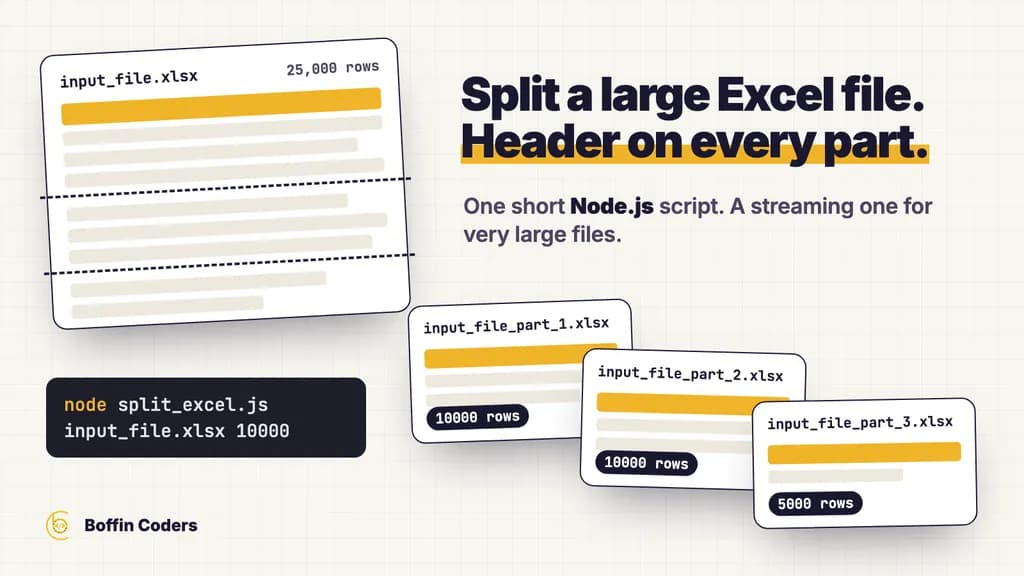
You have an Excel file that is too large to open comfortably, import or email, and you need it as several smaller files, each with the same header row at the top. In Node.js that takes one short script. This guide builds it step by step, then gives you the version to use when a file is so large that reading it all at once runs out of memory.
What you need
- Node.js installed. Any current long-term support release works.
- A basic idea of how to run a JavaScript file from the terminal.
- The Excel file you want to split. The examples call it
input_file.xlsx.
Step 1: set up the project
Create a folder for the project and start a Node.js project inside it:
1mkdir split-excel
2cd split-excel
3npm init -y
Then install SheetJS, the library that reads and writes Excel files. Install it the way the SheetJS installation guide says, from its own CDN. The copy on the public npm registry stopped at version 0.18.5, so npm install xlsx gives you an old release. Copy the install line from the guide, which always carries the current version. It looks like this:
1npm install https://cdn.sheetjs.com/xlsx-0.20.3/xlsx-0.20.3.tgzStep 2: write the script
Create a file called split_excel.js in the folder and paste this in:
1const fs = require('fs')
2const path = require('path')
3const XLSX = require('xlsx')
4
5function splitExcelFile(filePath, rowsPerFile = 1000, outDir = 'output') {
6  if (!fs.existsSync(filePath)) throw new Error(`File not found: ${filePath}`)
7
8  // cellDates keeps dates as dates instead of serial numbers
9  const workbook = XLSX.readFile(filePath, { cellDates: true })
10  const sheetName = workbook.SheetNames[0]
11  const rows = XLSX.utils.sheet_to_json(workbook.Sheets[sheetName], {
12    header: 1, // an array per row, so the header is row 0
13    defval: '', // keep empty cells, so columns do not shift
14  })
15  if (rows.length < 2) throw new Error('The first sheet has no data rows')
16
17  const [header, ...data] = rows
18  const baseName = path.parse(filePath).name
19  fs.mkdirSync(outDir, { recursive: true })
20
21  const totalFiles = Math.ceil(data.length / rowsPerFile)
22  for (let i = 0; i < totalFiles; i++) {
23    const chunk = data.slice(i * rowsPerFile, (i + 1) * rowsPerFile)
24    const sheet = XLSX.utils.aoa_to_sheet([header, ...chunk], { cellDates: true })
25    const book = XLSX.utils.book_new()
26    XLSX.utils.book_append_sheet(book, sheet, sheetName)
27
28    const outFile = path.join(outDir, `${baseName}_part_${i + 1}.xlsx`)
29    XLSX.writeFile(book, outFile, { compression: true })
30    console.log(`Created ${outFile} (${chunk.length} rows)`)
31  }
32  return totalFiles
33}
34
35const [, , input = 'input_file.xlsx', rows = '1000'] = process.argv
36try {
37  splitExcelFile(input, Number(rows))
38} catch (err) {
39  console.error(err.message)
40  process.exit(1)
41}
What each part does:
readFilewithcellDates: trueopens the workbook and keeps date cells as dates. Without it, dates come back as serial numbers such as 45583, and the split files show numbers where the dates were.sheet_to_jsonwithheader: 1returns each row as an array, so the first array is the header row.defval: ''keeps empty cells. Without it, a blank cell in the middle of a row is dropped and every value after it moves one column to the left.- The loop takes the data in slices of
rowsPerFilerows, puts the header back on top of each slice, and writes each slice as a new workbook in theoutputfolder. compression: truemakes the output files smaller. SheetJS writes uncompressed files unless you ask.
Step 3: run it
Put your Excel file in the same folder, then run the script with the file name and the number of rows you want in each file:
1node split_excel.js input_file.xlsx 10000On a file with 25,000 data rows it prints:
1Created output/input_file_part_1.xlsx (10000 rows)
2Created output/input_file_part_2.xlsx (10000 rows)
3Created output/input_file_part_3.xlsx (5000 rows)
Each file opens in Excel with the original header on the first row. If the file name is wrong, the script stops with "File not found" instead of a long error.
When the file is too large to load at once
The script above reads the whole workbook into memory before it writes anything. That is fine for most files. For a very large one, the process can run out of memory, or take so long that it looks stuck.
We measured both approaches on the same test file: 300,000 rows, five columns, 62 MB, on a laptop running Node.js 22. The script above peaked at about 990 MB of memory and took 11.6 seconds. The streaming version below peaked at about 220 MB and took 4.8 seconds. Its memory stays roughly flat as the file grows, because it holds one row at a time instead of the whole sheet.
Measured on one test file
Streaming holds one row, not the whole sheet
| Read the whole file (SheetJS) | Stream row by row (ExcelJS) | |
|---|---|---|
| Peak memory | About 990 MB | About 220 MB |
| Time | 11.6 seconds | 4.8 seconds |
| As the file grows | Memory grows with it | Memory stays roughly flat |
| Script length | 41 lines | 60 lines |
| Use it for | Most files, and quick changes | Very large files, or a small server |
Peak memory
- Read the whole file (SheetJS)
- About 990 MB
- Stream row by row (ExcelJS)
- About 220 MB
Time
- Read the whole file (SheetJS)
- 11.6 seconds
- Stream row by row (ExcelJS)
- 4.8 seconds
As the file grows
- Read the whole file (SheetJS)
- Memory grows with it
- Stream row by row (ExcelJS)
- Memory stays roughly flat
Script length
- Read the whole file (SheetJS)
- 41 lines
- Stream row by row (ExcelJS)
- 60 lines
Use it for
- Read the whole file (SheetJS)
- Most files, and quick changes
- Stream row by row (ExcelJS)
- Very large files, or a small server
Streaming needs a different library, ExcelJS, which can read and write a workbook one row at a time. Its documentation covers the streaming reader and writer. Install it in the same folder:
1npm install exceljsThen create split_excel_stream.js:
1const fs = require('fs')
2const path = require('path')
3const ExcelJS = require('exceljs')
4
5async function splitLargeExcelFile(filePath, rowsPerFile = 100000, outDir = 'output') {
6  if (!fs.existsSync(filePath)) throw new Error(`File not found: ${filePath}`)
7  fs.mkdirSync(outDir, { recursive: true })
8
9  const baseName = path.parse(filePath).name
10  const reader = new ExcelJS.stream.xlsx.WorkbookReader(filePath, {
11    sharedStrings: 'cache', // resolve text cells
12    styles: 'cache', // needed to recognise dates
13    hyperlinks: 'ignore',
14    worksheets: 'emit',
15  })
16  let header = null
17  let outFile = ''
18  let writer = null
19  let sheet = null
20  let part = 0
21  let count = 0
22
23  async function closePart() {
24    if (!writer) return
25    sheet.commit()
26    await writer.commit()
27    console.log(`Created ${outFile} (${count} rows)`)
28  }
29
30  async function openPart() {
31    await closePart()
32    part += 1
33    count = 0
34    outFile = path.join(outDir, `${baseName}_part_${part}.xlsx`)
35    writer = new ExcelJS.stream.xlsx.WorkbookWriter({ filename: outFile })
36    sheet = writer.addWorksheet('Sheet1')
37    sheet.addRow(header).commit()
38  }
39
40  for await (const worksheet of reader) {
41    for await (const row of worksheet) {
42      if (!header) {
43        header = row.values // the first row is the header
44        continue
45      }
46      if (!writer || count === rowsPerFile) await openPart()
47      sheet.addRow(row.values).commit() // written to disk, then released
48      count += 1
49    }
50    break // first sheet only
51  }
52  await closePart()
53  return part
54}
55
56const [, , input = 'input_file.xlsx', rows = '100000'] = process.argv
57splitLargeExcelFile(input, Number(rows)).catch((err) => {
58  console.error(err.message)
59  process.exit(1)
60})
How it differs from the first script:
- The reader is a stream.
WorkbookReaderhands you one worksheet, then one row, at a time.styles: 'cache'lets it recognise date cells, andsharedStrings: 'cache'turns text cells back into text. - Each row is committed as soon as it is added.
commit()writes the row to the output file and releases it, so memory does not grow with the file. - A new output file opens every
rowsPerFilerows, with the header written first.
Run it the same way:
1node split_excel_stream.js input_file.xlsx 100000Which one to use
Start with the first script. It is shorter and easier to change. Move to the streaming version when loading the file takes more memory than the machine can spare, or when the script runs on a small server next to other work.
Common problems
- Dates come out as numbers. Read with
cellDates: true, as the first script does. In the streaming version, keepstyles: 'cache'. - Values move one column to the left. A blank cell was dropped. Keep
defval: ''insheet_to_json. - You need a different sheet. Both scripts split the first sheet only. In the first script, change
SheetNames[0]to the position of the sheet you want. - The script slows down your web server. Splitting a file is CPU work, and in a server process it holds up every other request. Run it in a worker thread or a separate process. How to move CPU-heavy work off the Node.js event loop shows how.
The code
The original script is in our public repository, boffincoders/excel-splitter. The versions on this page add the output folder, the command-line arguments, date and blank-cell handling, a clear error when the file is missing, and the streaming option. Both were run against the test files described above before they went on this page.
If splitting files is one step in something larger, such as a nightly import, a report that feeds another system, or spreadsheets that customers upload every week, the script is the easy part, and the work is making it run unattended: retries when a file arrives half written, a log that shows which rows failed, and an alert when it stops. That is the kind of job Node.js developers by the month take on inside your own repository, and it is usually a few days of work rather than a project.
Related: Moving CPU-heavy work off the Node.js event loop · Hire Node.js developers · Web application development
Keep reading
Manoj Sethi
Founder, Boffin Coders
Manoj founded Boffin Coders in 2017 and leads its work with agencies: white-label builds, delivery and partnerships. Manoj writes about how agencies can add development capacity without losing control of their clients.
Frequently asked questions
Read the workbook with the SheetJS library, turn the first sheet into rows, then write the data out in slices of a fixed number of rows, with the header row put back on top of each slice. Each slice becomes a new .xlsx file. The script takes the file name and the rows per file as arguments, and the whole thing runs to about 40 lines.
Not answered here?
Need this built?
Hire dedicated Node.js developers in India
US$18-35 an hour, or from US$3,000 a month for a dedicated developer. Shortlisted profiles within two working days; a developer you choose starts within one to two weeks. They work in your tools, under your management.
How hiring Node.js developers in India worksNeed this built?
We build websites and apps for businesses, and work behind digital agencies as their development team. Tell us where things stand on a 20-minute call.