Flutter OCR: How Do You Read Text From an Image on the Device?
- October 22, 2026
- 11 min read

Flutter Developer
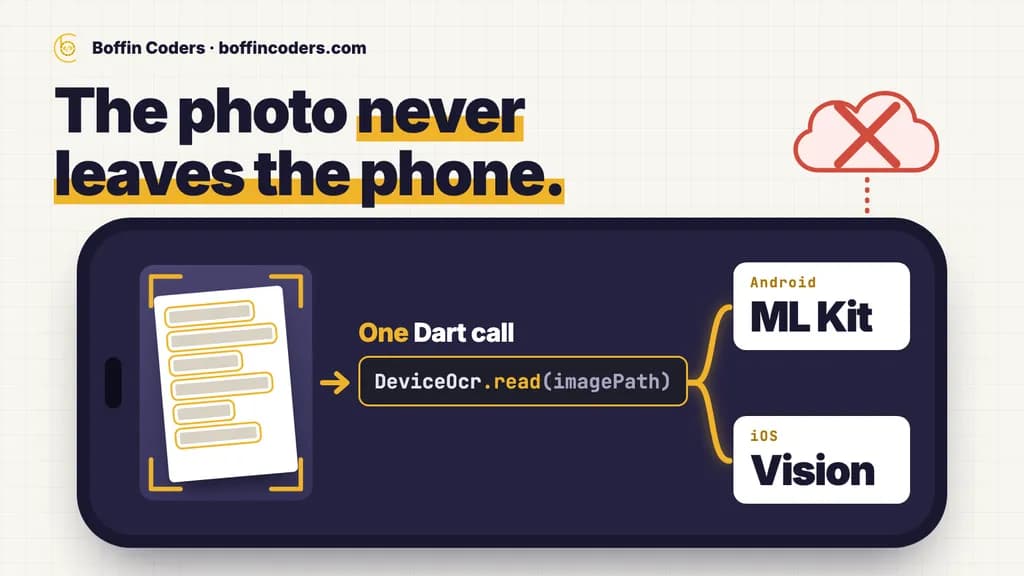
Flutter OCR on a phone means calling the text recognition each platform already has: Google's ML Kit on Android and Apple's Vision framework on iOS. Both read text from a photo on the device itself. You reach them through a plugin such as google_mlkit_text_recognition, or through a small platform channel of your own. We moved one of our own Flutter apps from the plugin to its own channel when its iOS build left CocoaPods, and the steps below come from that move.
You have a photo of a form, a receipt or a label, and you want its words in a text field. You do not want to upload the photo to read it, and you do not want a library that breaks your iOS build next year. Both are possible, and the choice between them comes down to one file in your iOS folder.
Which Flutter OCR options run on the device?
Two routes run the reading step on the phone, and both end up in the same native engines:
Option | Android | iOS | Scripts out of the box | What you set up |
|---|---|---|---|---|
The ML Kit plugin | ML Kit | ML Kit, installed through CocoaPods | Latin, with Chinese, Devanagari, Japanese and Korean as extra packages | One package, iOS 15.5 or newer, armv7 excluded in the Podfile |
Your own platform channel | ML Kit | Apple Vision | Latin on Android, with the other ML Kit scripts as extra libraries, and Vision's languages on iOS | A Kotlin handler, a Swift handler and one Dart call |
The plugin is the faster start. Its own page explains that no machine learning runs in Dart: every call passes through a platform channel to Google's native API. The second route is the same idea, written by you, with Apple's own engine on iOS instead of Google's.
A cloud OCR service is the third route. The photo is uploaded and read on a server. Choose it only when the device cannot do the job, because the image then leaves the phone and every read costs a request.
How do you add OCR to a Flutter app with the ML Kit plugin?
Add the package:
1flutter pub add google_mlkit_text_recognitionThen read the text from an image file:
1import 'package:google_mlkit_text_recognition/google_mlkit_text_recognition.dart';
2
3Future<String> readText(String imagePath) async {
4  final inputImage = InputImage.fromFilePath(imagePath);
5  final recognizer = TextRecognizer(script: TextRecognitionScript.latin);
6  try {
7    final RecognizedText result = await recognizer.processImage(inputImage);
8    return result.text;
9  } finally {
10    await recognizer.close();
11  }
12}
The result also keeps the layout. result.blocks holds blocks of text, each with its lines and words, a bounding box, corner points and the languages recognised. Use the boxes when you need to know where on the page a value sat, for example the number printed beside "Total".
The plugin's page lists what each platform needs:
- iOS: a minimum deployment target of iOS 15.5, Xcode 15.3 or newer, and armv7 excluded, because ML Kit supports only 64-bit devices. The page gives the Podfile lines that set both.
- Android: a
minSdkVersionof 21 or higher. - Other scripts: Latin is the default. Chinese, Devanagari, Japanese and Korean each need an extra dependency, a Gradle line on Android and a pod on iOS.
Why move Flutter OCR off the plugin to your own channel?
Because of the Podfile. The plugin's iOS setup is a Podfile, and the CocoaPods trunk stops taking new versions on 2 December 2026. The CocoaPods team announced the read-only plan, and Flutter's own documentation repeats the date.
Flutter has turned on Swift Package Manager by default since release 3.44. It falls back to CocoaPods for any plugin that does not support Swift Package Manager yet. So one CocoaPods-only plugin keeps the whole Podfile, and the CocoaPods toolchain, in your build.
That was our case. When we moved I Save Life, our own Flutter blood donation app, to Swift Package Manager in October 2026, the text recognition plugin was CocoaPods-only on iOS, and the app used one call from it. We replaced it with a native channel: Apple Vision on iOS, ML Kit text recognition 16.0.1 on Android, behind one Dart call. The iOS build now uses Swift Package Manager only, with no Podfile, and the change was checked on iOS and Android devices.
There is a second gain on iOS. Vision's text recognition has been part of iOS since iOS 13, so the app ships no extra model for it. On Android, Google's documentation gives the trade-off for ML Kit: the bundled library adds about 4 MB per script per architecture and is ready at once, while the unbundled one adds about 260 KB and downloads its model through Google Play services before first use.
How do you build the OCR platform channel?
Three small pieces: one Dart call, one handler per platform. The channel name must match on all three.
The Dart side
1import 'package:flutter/services.dart';
2
3class DeviceOcr {
4  static const _channel = MethodChannel('app/text_recognition');
5
6  static Future<String> read(String imagePath) async {
7    final text = await _channel.invokeMethod<String>('recognize', {'path': imagePath});
8    return text ?? '';
9  }
10}
Wrap the call in a try block in your screen. Flutter's guide notes that a platform call can fail, and a failed read should leave the field empty for the person to type, not crash the form.
The Android side, with ML Kit
Add the bundled library to android/app/build.gradle.kts:
1dependencies {
2    implementation("com.google.mlkit:text-recognition:16.0.1")
3}
Then handle the call in MainActivity.kt:
1import android.net.Uri
2import com.google.mlkit.vision.common.InputImage
3import com.google.mlkit.vision.text.TextRecognition
4import com.google.mlkit.vision.text.latin.TextRecognizerOptions
5import io.flutter.embedding.android.FlutterActivity
6import io.flutter.embedding.engine.FlutterEngine
7import io.flutter.plugin.common.MethodChannel
8import java.io.File
9
10class MainActivity : FlutterActivity() {
11    private val recognizer by lazy { TextRecognition.getClient(TextRecognizerOptions.DEFAULT_OPTIONS) }
12
13    override fun configureFlutterEngine(flutterEngine: FlutterEngine) {
14        super.configureFlutterEngine(flutterEngine)
15        MethodChannel(flutterEngine.dartExecutor.binaryMessenger, "app/text_recognition")
16            .setMethodCallHandler { call, result ->
17                val path = call.argument<String>("path")
18                if (call.method != "recognize" || path == null) {
19                    result.notImplemented()
20                    return@setMethodCallHandler
21                }
22                try {
23                    val image = InputImage.fromFilePath(this, Uri.fromFile(File(path)))
24                    recognizer.process(image)
25                        .addOnSuccessListener { text -> result.success(text.text) }
26                        .addOnFailureListener { e -> result.error("ocr_failed", e.message, null) }
27                } catch (e: Exception) {
28                    result.error("bad_image", e.message, null)
29                }
30            }
31    }
32}
process returns a task and calls you back when the read is done, so the handler returns at once and the reply follows.
The iOS side, with Vision
New Flutter apps use the UIScene lifecycle (the default since Flutter 3.41), and Flutter's guide says to create the channel in didInitializeImplicitFlutterEngine, because the window does not exist yet when the app finishes launching. In AppDelegate.swift:
1import Flutter
2import UIKit
3import Vision
4
5@main
6@objc class AppDelegate: FlutterAppDelegate, FlutterImplicitEngineDelegate {
7  func didInitializeImplicitFlutterEngine(_ engineBridge: FlutterImplicitEngineBridge) {
8    GeneratedPluginRegistrant.register(with: engineBridge.pluginRegistry)
9
10    let channel = FlutterMethodChannel(
11      name: "app/text_recognition",
12      binaryMessenger: engineBridge.applicationRegistrar.messenger()
13    )
14    channel.setMethodCallHandler { call, result in
15      guard call.method == "recognize",
16            let args = call.arguments as? [String: Any],
17            let path = args["path"] as? String else {
18        result(FlutterMethodNotImplemented)
19        return
20      }
21      DispatchQueue.global(qos: .userInitiated).async {
22        let request = VNRecognizeTextRequest()
23        request.recognitionLevel = .accurate
24        request.usesLanguageCorrection = true
25        let handler = VNImageRequestHandler(url: URL(fileURLWithPath: path))
26        do {
27          try handler.perform([request])
28          let lines = (request.results ?? []).compactMap { $0.topCandidates(1).first?.string }
29          DispatchQueue.main.async { result(lines.joined(separator: "\n")) }
30        } catch {
31          DispatchQueue.main.async {
32            result(FlutterError(code: "ocr_failed", message: error.localizedDescription, details: nil))
33          }
34        }
35      }
36    }
37  }
38}
The read runs on a background queue, and the answer goes back to Flutter on the main queue. Each observation is a piece of recognised text, and topCandidates(1) takes the reading Vision rates highest.
How do you get better results from on-device OCR?
Most bad reads come from the photo, not the engine. Google's ML Kit guide gives numbers you can design the camera screen around:
Situation | What the guide says |
|---|---|
Size of each character | At least 16 x 16 pixels, with no gain above 24 x 24 |
A business card filling the width | A 640 x 480 image might work well |
A letter-sized printed page | A 720 x 1280 image might be needed |
A blurred photo | Accuracy drops: ask the person to take it again |
On iOS, three settings on the Vision request do most of the work. recognitionLevel chooses accuracy or speed. recognitionLanguages lists the languages to try, in order of priority. usesLanguageCorrection turns language correction on or off during recognition. Correction is built for words, so test it with your codes and reference numbers, and turn it off if it changes them.
Crop before you read. A photo of a whole desk with a slip in the middle gives the engine every other word on the desk too, and you then have to find the right line among them.
What should your app do with the text after OCR?
Treat it as a draft. OCR reads characters, and a misread digit in a phone number is worse than an empty field.
In our app, the recognised text goes through a parser on the device before it fills the form. The parser never outputs a phone number or a blood group that is not in the text itself, a blood group read from handwriting is marked for the person to confirm, and the person still sends the form themselves.
On-device OCR keeps the reading step on the phone. If you then send the text or the photo to a server or an AI model, as many form-filling features do, say so in your privacy policy. The device step alone does not make the whole feature private.
Does Flutter OCR work on the web or desktop?
Not through ML Kit. The plugin's page says Google built ML Kit only for iOS and Android, and web or other platforms are not supported.
Vision is different. VNRecognizeTextRequest is available on macOS too, so a Flutter macOS app can call it through the same kind of channel you wrote for iOS. For the web or Windows you need another engine, and the choice depends on whether the reading can run on a server.
If you would rather have the feature built for you, you can hire Flutter developers who built it for an app of our own on Android and iOS.
Keep reading
Varinder Singh
Flutter Developer
Varinder Singh builds cross-platform mobile apps in Flutter for iOS and Android, from first screen to store release. Varinder writes about shipping Flutter apps that pass store review and stay easy to maintain.
Frequently asked questions
The best way to do OCR in Flutter on phones is usually the engine each platform ships: Google's ML Kit on Android and Apple's Vision framework on iOS. Both read printed text on the device with no charge per image. The ML Kit text recognition plugin is the quickest start, and your own platform channel suits apps that want Vision on iOS and no CocoaPods.
Not answered here?
Need this built?
We build websites and apps for businesses, and work behind digital agencies as their development team. Tell us where things stand on a 20-minute call.