How Do You Speed Up a WordPress Site? Start by Finding What Is Slow
- October 18, 2026
- 10 min read
Founder, Boffin Coders
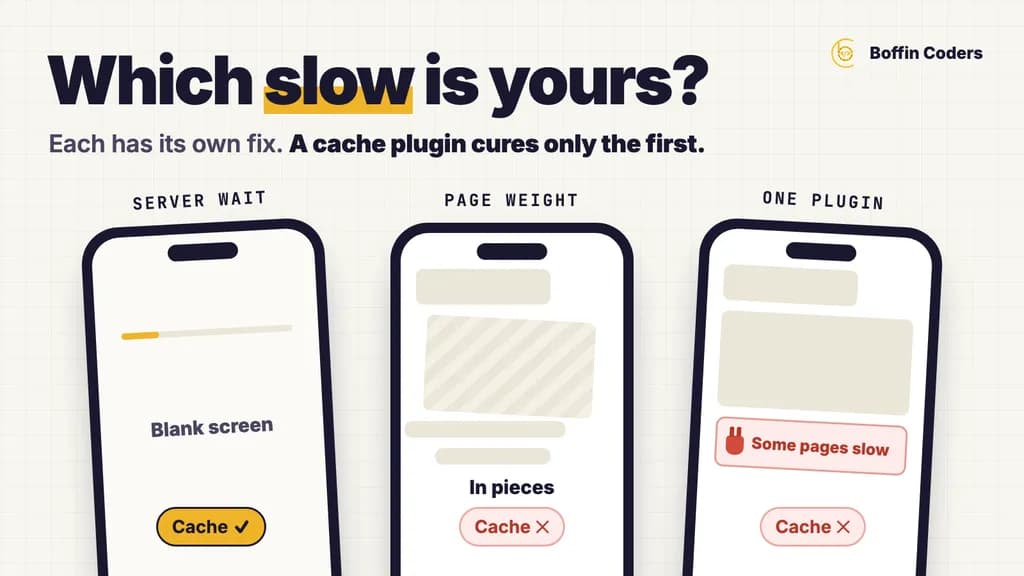
To speed up a WordPress site, first find which part is slow: the server's wait before the first byte, the weight of what each page loads, or one plugin doing too much work. Each has its own fix, and a cache plugin cures only the first. Measure with PageSpeed Insights and one curl command, change one thing at a time on a staging copy, and test again from where your customers are. Most slow sites need only a few of the fixes below.
Why is my WordPress site so slow?
When owners ask "why is my WordPress site so slow?", one of three things is taking the time, and each needs a different fix. What makes a WordPress site slow for one owner is rarely what makes it slow for the next.
Where the time goes | What you notice | Usual cause |
|---|---|---|
Server wait (time to first byte) | A blank screen before anything appears | No page cache, slow hosting, a heavy database query, a server far from your visitors |
Page weight | The page appears in pieces, the layout jumps, phones struggle | Large images, page builder markup, scripts and stylesheets from every plugin |
One plugin or task | Some pages or the admin are slow while others are fine | A plugin running queries on every request, search and filter features, scheduled tasks |
By default WordPress builds every page on request. PHP runs the theme and every active plugin, asks the database for the content, and only then sends the HTML. On a quiet site with good hosting that takes a fraction of a second. Add twenty plugins, a page builder and a busy shop, and the same page can take two seconds before the visitor sees anything.
The second cause is what the browser has to fetch after that. A theme and its plugins each add their own stylesheets and scripts, often on every page, whether the page uses them or not. A form plugin's files load on the blog, and a slider's scripts load on a page with no slider. The visitor never sees these files, but the browser still downloads every one of them.
Why is my WordPress website slow all of a sudden?
Is your WordPress website slow on Monday when it was fine last week? Then something changed, and you can find the cause. Check these in order:
- An update. A plugin, theme or core update shipped a slower query or a new script. The update history in your hosting panel or the plugin's changelog gives you the date.
- Traffic you did not ask for. Bots crawling every filter and search address can keep the server busy. Your hosting dashboard shows the requests.
- A growing database. Logs, expired temporary data (WordPress calls it transients) and old revisions grow in the background until a query that took milliseconds takes seconds.
- The server itself. On shared hosting another site on the same machine can take the resources. Your host's status page or a support ticket answers this quickly.
How do you measure where a slow WordPress site loses time?
Speed work costs the most when you change things on a guess. Two free checks tell you where a slow WordPress site loses its time before you change anything.
Step 1: PageSpeed Insights, for what real visitors see
Run your home page and one busy inner page through PageSpeed Insights. Read the top section first. If Google has enough visits, it shows field data from real Chrome users over the last 28 days. Largest Contentful Paint (when the main content appears) should be 2.5 seconds or less, and Interaction to Next Paint (how quickly the page reacts to a tap) 200 milliseconds or less. The lab score below it is one test on a simulated phone. That test helps you find causes. The field data above it is the number your visitors live with.
Step 2: one curl command, for the server's share
Open a terminal on a Mac or a Linux machine and run:
1curl -s -o /dev/null -w "connect %{time_connect}s tls %{time_appconnect}s first byte %{time_starttransfer}s total %{time_total}s\n" https://yoursite.com/Run it three times and take the middle result. The numbers mean:
Number | What it measures | What a high value points to |
|---|---|---|
connect | One round trip to the server | Distance between you and the server, or a slow network |
tls | The secure connection being set up | Distance again, because it takes a few round trips |
first byte | When the first byte of HTML arrived | The server building the page: no page cache, slow PHP, slow queries |
total | When the whole HTML document arrived | A very large HTML document, often from a page builder |
If "first byte" minus "tls" is more than about half a second, the server is the problem, and the fixes in the next section come first. If the first byte is quick but PageSpeed Insights is still slow on a phone, the page weight is the problem.
What the check showed on five live WordPress sites
I ran this check from our office on the home pages of five live WordPress business sites, three runs each, and counted what each home page asks the browser to load. Four of the five were built with a page builder.
Measure | Range across the five sites |
|---|---|
Time to first byte, middle of three runs | 0.72 to 1.34 seconds |
Script tags in the home page | 46 to 82 |
Stylesheets, the four sites built with a page builder | 32 to 56 |
Stylesheets, the site built without one | 9 |
HTML size, the four sites built with a page builder | 206 to 369 KB |
HTML size, the site built without one | 100 KB |
One site answered from its page cache and still took about 1.2 seconds, because each round trip to its server took a quarter of a second from where I was testing. A plugin cannot win back time lost to distance, but a content delivery network (CDN) can, because it keeps a copy of your pages near your visitors. Two sites sat behind a CDN that marked the home page "dynamic", which means the CDN kept no copy of the page and every visit still waited for the server. The page builder sites sent two to nearly four times as much HTML as the site built without one. So test from near your customers, and read the response headers as well as the score.
What fixes a slow server response in WordPress?
When the first byte is slow, work through these in order, and try each one on a staging copy before it reaches the live site.
Add one full-page cache
A page cache saves the finished HTML of each page and sends that copy to the next visitor, so PHP and the database do no work at all. Many hosts include one at the server level. If yours does not, one caching plugin does the same job. Keep to a single cache layer, because a host cache and a plugin cache fighting over the same pages is a common cause of stale pages and odd bugs. Pages that differ for each visitor, such as the cart, checkout and account pages of a shop, must stay out of the cache.
Check the PHP version and the hosting plan
Newer PHP versions run WordPress faster, and older ones stop getting security fixes. Site Health, under Tools in your WordPress admin, shows the PHP version and flags known problems. Then look at your hosting plan. A shop or a membership site with logged-in users cannot be fully page-cached, so it needs more server memory and an object cache (Redis is the usual one), which keeps database answers in memory.
Clean the database
Three things grow in a WordPress database without anyone noticing: post revisions, expired transients and autoloaded options, which are settings WordPress loads on every request. Plugins you deleted years ago can leave autoloaded data behind. Site Health warns when the autoloaded total gets large, and a developer can see which plugin owns each row before removing it. Take a backup before every clean-up.
What makes a WordPress page heavy, and how do you lighten it?
When the server is quick but the page still crawls on a phone, the browser is downloading and running too much.
Images
Resize each image to the size it is shown before you upload it, instead of uploading the file straight from the camera. Serve images as WebP or AVIF, which WordPress supports. Images further down the page can load lazily, which WordPress does by default. The main image at the top should never load lazily: it decides your Largest Contentful Paint and should load first.
Scripts and stylesheets from plugins and page builders
Most plugins load their files on every page. Unload them where they are not used (a form plugin only on the contact page), defer scripts that the first view does not need, and remove plugins that do the same job twice. A page builder adds its own layer of markup and files. Its performance settings help, but when every page is built from deeply nested sections, the weight comes from the design itself.
Third-party tags
Chat widgets, tag managers, heatmaps, embedded videos and booking widgets each fetch code from another company's server. Each one is small, but five of them on every page add up. Load chat and video on a click, keep one tag manager, and remove tags nobody reads.
How do you find the plugin that slows WordPress down?
The number of plugins matters less than what each one does on every request. One badly written plugin can cost more than twenty careful ones.
Symptom | Likely cause | How to confirm |
|---|---|---|
Uncached pages slow, cached pages fine | A plugin running heavy queries on each request | Query Monitor on staging shows slow queries and the plugin behind each |
The admin is slow, the public site is fine | Dashboard widgets, the Heartbeat API, update checks | Query Monitor in the admin, or turn widgets off one by one |
Slow at certain times of day | Scheduled tasks (WP-Cron) running on visits | Move scheduled tasks to a real server schedule |
Search and filter pages slow | Searches across many products or posts without an index | The slow query log, then an index or a search service |
The reliable way to find it starts on a staging copy. Install the free Query Monitor plugin there and load the slow page. It lists every database query, how long it took and the plugin that made it. If nothing stands out, turn plugins off one at a time on staging and time the page after each. The plugin whose removal makes the difference is the slow one, and you can replace it, configure it or report it to its developer.
Do speed plugins speed up a WordPress site on their own?
A caching plugin speeds up a WordPress site only where pages can be cached. It does nothing for a 4 MB hero image, a slow checkout or a plugin that runs on every request. Optimisation plugins that combine and shrink files can help, but stacking several of them is a common cause of broken layouts and scripts that stop working. Use one cache, measure, and add the next change only when the numbers say you need it.
A speed score on its own can mislead you for the same reason. A fast lab score on the home page can sit beside a checkout that takes four seconds for real customers. The field data in PageSpeed Insights and a curl test on the pages that earn money tell you more than the score does.
When should you rebuild instead of tuning WordPress?
Another round of plugins will not change much once the build itself is the problem: the page builder's nested markup is most of the page weight, the theme loads everything on every page, or the site now does work WordPress was not designed for, such as heavy search, user accounts and custom workflows. A rebuild on a lighter theme keeps your content and your addresses. For a site that has turned into an application, read should you leave WordPress for a web app before you decide.
For most business sites the answer is still WordPress, done with care: one cache layer, current PHP, images at the right size, plugins that load only where they are used, and a test from near your customers after each change. If you would rather have it done for you, you can hire WordPress developers who do this speed work on a staging copy and change the live site only after you approve it.
Keep reading
Manoj Sethi
Founder, Boffin Coders
Manoj founded Boffin Coders in 2017 and leads its work with agencies: white-label builds, delivery and partnerships. Manoj writes about how agencies can add development capacity without losing control of their clients.
Frequently asked questions
Your WordPress site is slow on a phone because a phone has a slower processor and often a slower connection, so heavy images, scripts and page builder markup hurt more there. Google's lab test simulates a mid-range phone for the same reason. Check the mobile result in PageSpeed Insights first, then shrink images and unload the scripts each page does not use.
Not answered here?
Need this built?
We build websites and apps for businesses, and work behind digital agencies as their development team. Tell us where things stand on a 20-minute call.