How to Tell Whether Google Actually Indexed What You Published
- September 22, 2026
- 7 min read

Co-Founder, Boffin Coders
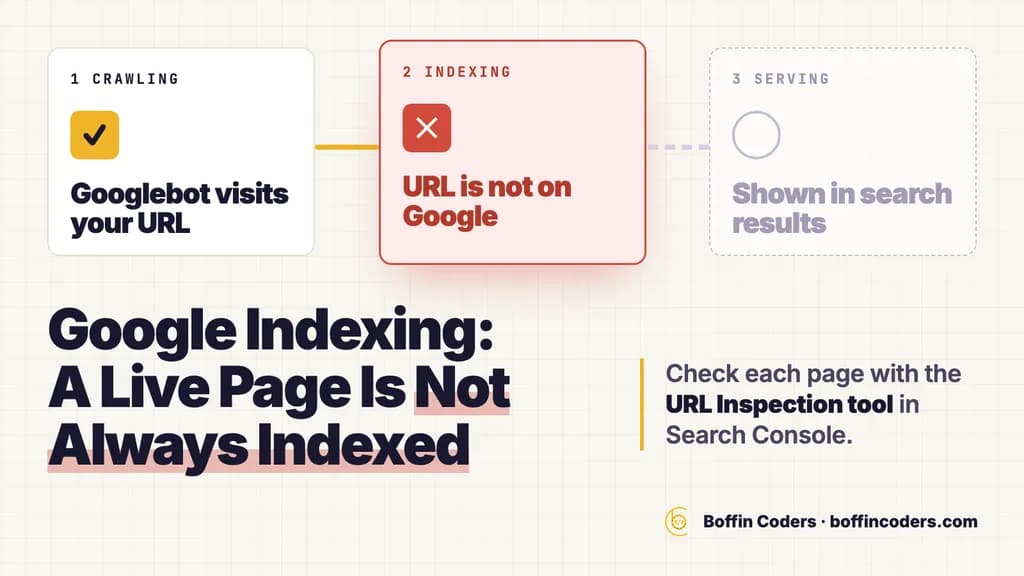
Publishing a new blog, landing page, or product page is only the first step. Before expecting organic traffic, one must find out if Google has actually found, crawled and indexed the published page.
One should note that crawling and indexing are two different terms. Google may find a URL but may not add it to its search index. Google also does not guarantee the indexing of every crawled page.
So, how can one check their new page's status? There are some easy methods of the published page's status verification.
Crawling vs. Indexing: What Is the Difference?
Google Search generally works through three stages: crawling, indexing, and serving results.
Stage | What happens? |
|---|---|
Crawling | Googlebot discovers and visits your URL |
Indexing | Google processes the page and decides whether to add it to its index |
Serving | Google may show the indexed page in search results for relevant searches |
A page can therefore be live on your website without being indexed. Meeting Google's technical requirements also does not automatically guarantee indexing.
1. Use Google Search Console First
The best approach to check Google index status of a page is to use Google Search Console.
First open the Search Console and use the URL inspection tool. In this case, copy and paste the URL of the page.
Some insights that could be received via this tool are:
- Whether the given URL is indexed
- When the last crawling was done
- The canonical version of the same page
- Some crawling and indexing issues
- Whether it’s possible to run the test of the page as the live one
For understanding the index status of an individual page, it is suggested by Google to use the URL Inspection tool. For website owners, Google Search Console can also serve as a reliable Google indexing checker because it provides information directly from Google's systems.
What the Result Means
Search Console result | What it tells you |
|---|---|
URL is on Google | Google has indexed the URL |
URL is not on Google | The page is currently not indexed |
URL has issues | A technical or indexing problem may need attention |
URL is available to Google | Google can potentially crawl the page, but this does not guarantee indexing |
Don't confuse "Google can access this page" with "Google has indexed this page. "They are not the same thing.
2. Try a site: Search
- You can conduct a fast manual verification by searching with Google:
1site:yourdomain.com/page-url- Another search you can perform is
1site:yourdomain.comUsing these searches will enable you to see which pages of your website have been indexed. Google itself supports the use of the site operator as a conventional method of finding out if pages have been indexed.
But it is crucial to point out that using the site search does not guarantee that every single URL will be visible. Thus, Google suggests using the URL Inspection tool as the more suitable method for resolving page-related issues.
Therefore, you should consider the site search as a preliminary check only.
3. Don't Assume "Not Ranking" Means "Not Indexed"
It is a frequent misconception about SEO. This is why using a Google indexing checker should be the first step before assuming that a page has an indexing problem.
The process of indexing indicates that Google has taken the page into its index, which doesn’t mean the page will immediately appear at the top of search results.
Google employs a wide range of technologies and signals to establish which indexed pages will appear for specific queries.
How Are Indexing and Ranking Different
Question | What it means |
|---|---|
Is my page indexed? | Can Google include the page in its search index? |
Is my page ranking? | Is Google showing it for relevant searches? |
Is my page getting traffic? | Are people actually clicking and visiting it? |
Keeping these three questions separate makes SEO reporting much easier.
4. Check the Page Indexing Report
Managing a larger website can result in the impracticality of monitoring all the URLs individually.
To make things easier, the Google Page Indexing report from Google Search Console gives you a wider overview of the pages that Google has crawled, indexed, or disregarded.
Thus, you can spot things like
- Pages that are not indexed.
- Pages that are not crawled properly.
- Duplicate URLs.
- Pages affected by the noindex attribute.
- URLs discovered by Google but not indexed.
This report is especially useful after publishing multiple blogs or introducing a new section of your website.
5. Check for Common Indexing Problems
If you cannot check Google index status successfully, start by reviewing the technical factors that may be preventing Google from accessing or processing the page.
Checklist For Technical Issues
- Can Googlebot access the page?
- Does the URL show a successful HTTP 200 response?
- Is there a noindex instruction?
- Is the page banned by robots.txt?
- Does the page include materials that can be indexed?
- Is the canonical URL leading to another location?
- Is Google able to reach the URL using the sitemap or links within the site?
As described by Google's standards, Google needs to get access to the page, have it function fine, and provide materials that can be indexed.
6. Use Your Sitemap to Help Google Discover Pages
Sitemaps provide Google access to important URLs of the website and facilitate URL discovery on websites that are large or new but submitting a URL through a Sitemap does not provide a guarantee of indexing.
A Sitemap serves the purpose of allowing Google to discover your content.
Rather, you can think of a Sitemap as a tool to help Google to find and discover the content you have created instead of a tool to ensure that it actively indexes the URLs.
7. Request Indexing When Appropriate
If you've updated or published a major webpage, you can ask Google to crawl that page through the URL Inspection tool in Search Console.
While this works on a page-by-page basis, please keep in mind that there is no guarantee regarding the timing of indexing.
Google states that crawling can take between a few days and a few weeks, and making multiple requests will not speed up Google’s crawlers.
Why is my website not indexed by Google?
A website is not indexed by Google for one of three reasons: Google has not crawled it yet, Google crawled it and left it out for now, or something on the page tells Google to stay away. The URL Inspection tool says which one, and it is where Boffin Coders starts on any site with an indexing problem.
Two statuses in Search Console cause most of the confusion. "Discovered - currently not indexed" means Google knows the URL but has not crawled it yet, and the fix is links to it from pages Google already visits. "Crawled - currently not indexed" means Google read the page and chose not to index it for now. Requesting indexing again does not change that. The page has to say something the pages around it do not.
The blockers you can fix the same day:
- a noindex tag left over from a staging site
- a robots.txt rule that blocks the folder
- a canonical tag that points at a different URL
- a page that returns an error or redirects somewhere else
- a page that no other page links to
How to get your website indexed by Google, in order: fix the blocker, link to the page from a page that is already indexed, keep it in your sitemap, request indexing once in URL Inspection, then wait. Asking again does not speed it up.
A Simple Google Indexing Checklist
Before assuming that your newly published page is invisible to Google, run through this checklist:
Check | What to do |
|---|---|
URL Inspection | Check the URL in Search Console |
Google Search | Try a site search |
Google Page Indexing | Look for exclusions or errors |
Technical setup | Check robots.txt, status code, and noindex |
Internal links | Make sure relevant pages link to the new URL |
Sitemap | Confirm the URL is included where appropriate |
Wait and monitor | Give Google time to crawl and process the page |
Need Help With Your Website's Indexing?
While regularly publishing content may be an important factor, technical SEO is what plays a crucial role in enabling search engines to find and understand that content. If your website suffers from a series of indexing issues, unexplained exclusions or a number of pages that are not indexed in Google, a technical audit will identify the causes. Rendering and indexing checks are the first step of our technical SEO services.
At Boffin Coders, we create websites that take into account the company’s SEO, development, structure, performance, and future growth. Our team of in-house specialists is ready to examine the technical aspects of your website and help improve the digital infrastructure of your web resource.
If you want to get assistance with the development of a website with SEO in mind or make technical improvements, don’t hesitate to turn to Boffin Coders.
Keep reading
Jyoti
Co-Founder, Boffin Coders
Jyoti co-founded Boffin Coders and looks after client relationships and how projects run from first call to handover. Jyoti writes about hiring, process and what makes a development partnership work.
Frequently asked questions
Paste the page's URL into the URL Inspection tool in Google Search Console. "URL is on Google" means the page is indexed, and "URL is not on Google" means it is not. The tool also shows when Google last crawled the page and which canonical it chose. A site: search such as site:yourdomain.com/page-url is a quick first check, but it can miss pages, so trust Search Console over it.
Not answered here?
Sell SEO to your clients without hiring an SEO team
Boffin Coders is the search team behind agencies: technical SEO, local SEO and answer-engine optimisation, delivered under your brand. You see the work before you pay.
Need this built?
We build websites and apps for businesses, and work behind digital agencies as their development team. Tell us where things stand on a 20-minute call.