WordPress Security Audit: A Checklist for Agencies
- November 26, 2026
- 9 min read

WordPress and Shopify Developer
A WordPress security audit checks a site's WordPress version, plugins, themes, PHP version, user accounts, login, backups and server settings, so you find the gaps before an attacker does. For an agency it matters because when a client's site is hacked, the client calls you, whoever runs the hosting. Start with the checks anyone can run from outside, then go through the site with admin access, and fix the updates first.
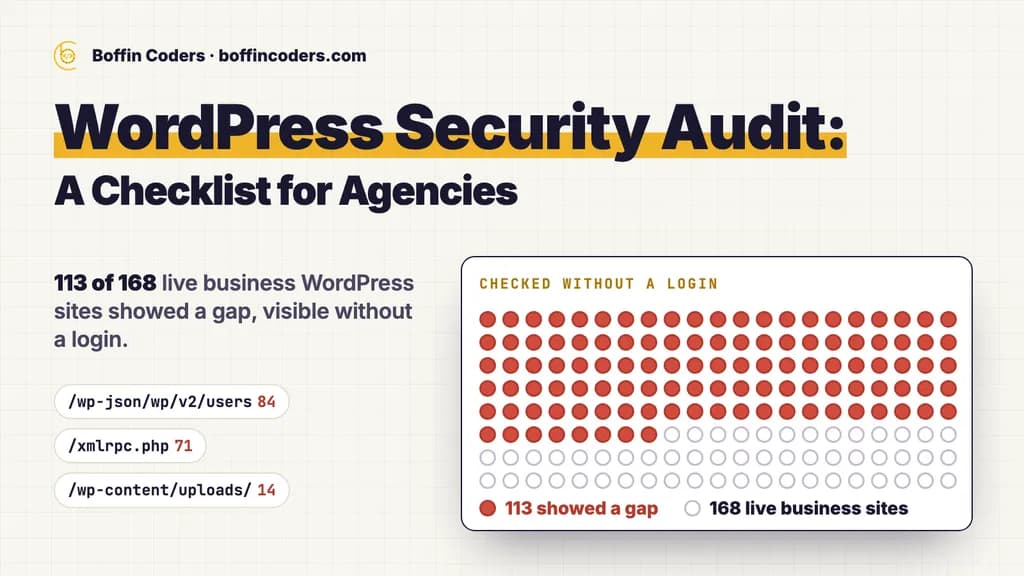
On 24 Nov 2026 we ran those outside checks on 168 live business WordPress sites: accountants, dentists and plumbers listed on Google Maps in Chicago, Dallas, Toronto, Calgary, Manchester, Leeds, Melbourne and Brisbane. 113 of the 168 showed at least one gap an audit would flag: a WordPress version line the project no longer officially supports, a missed release on its own line, a public list of user accounts, an open file listing of uploads, or a PHP version that gets no more security fixes. Every one of those could be seen without a login.
What does a WordPress security audit find on real sites?
A WordPress security audit mostly finds upkeep that stopped, such as updates that never installed and accounts nobody removed. The gaps are ordinary, the kind that slip when nobody owns the technical side of a site.
What we checked from outside | Sites | Why an audit cares |
|---|---|---|
WordPress version visible (feed, generator tag or | 129 of 168 | Anyone can see which release runs |
On the latest release, 7.1.5 | 91 of those 129 | Fully up to date |
On an older version line than 7.1 | 30 of 129 (5 of them older than 6.0) | WordPress officially supports only the latest version |
Behind the newest release of their own line | 18 of 129 | Missing fixes WordPress has already shipped for that line |
PHP version shown in a response header | 52 of 168 | The server announces its PHP version to anyone |
PHP 8.1 or older | 17 of those 52 | PHP no longer releases security fixes for it |
User list public at | 84 of 168 (217 accounts) | Anyone can read the account names |
XML-RPC answering at | 71 of 168 | A remote publishing route, needed only if something uses it |
File listing open at | 14 of 168 | Every uploaded file can be browsed |
None of six common security headers | 85 of 168 | The browser gets no extra protection rules |
The version rows matter most. WordPress says only the latest version is officially supported, and its security team backports fixes to older versions as a courtesy so they arrive through automatic updates. So the 18 sites behind on their own line are missing fixes that were made for them. WordPress installs these minor releases by itself by default, so a site that is behind is worth a question: automatic updates may have been switched off, or they may be failing.
The PHP figures come only from servers that announce their version, 52 of the 168. Seventeen of those run PHP 8.1 or older, and PHP's own supported list now starts at 8.2. Our post on PHP end of life covers how to move a WordPress site up to a supported version safely.
What goes on a WordPress security checklist?
A WordPress security checklist covers six areas: updates, accounts and login, plugins and themes, backups, server settings, and signs of a past break-in. Split it in two. The first half you can run on any site from outside, a prospect's included. The second half needs admin access and the hosting account, so it starts once the client says yes.
Keep one WordPress security checklist for every client site, in a spreadsheet with a row per site and a column per check. The date of each pass and what you fixed go beside it. That record is what you show a client when they ask what the care plan does.
What can you check on a client's site without a login?
You can check eight things on a client's WordPress site without a login, in a browser or with a single request each. None of them touches the client's data, and together they tell you how much work the inside audit will be.
Check | How to see it | What a pass looks like |
|---|---|---|
WordPress version | The | The latest release |
PHP version | The | A version on PHP's supported list, and ideally no header at all |
HTTPS | Open the | It redirects to |
Security headers | The response headers of the home page |
|
User list |
| No list, or one the client chose to publish |
XML-RPC |
| Off, unless something on the site uses it |
Uploads folder |
| No file listing |
Pages in Google | A | Only pages the client published |
Security headers are instructions the server sends with every page. Strict-Transport-Security tells browsers to reach the site over HTTPS only. X-Frame-Options, or the frame-ancestors rule of a Content-Security-Policy, stops other sites from embedding the page, which protects against clickjacking. X-Content-Type-Options stops the browser guessing a file's type. Of the 168 sites, 27 sent Strict-Transport-Security, and only 8 sent all six headers we looked for: these four plus Referrer-Policy and Permissions-Policy.
What do you check once you have admin access?
Once you have admin access, check what the outside view cannot show: what is installed, who can log in, what happens on the server and whether the site can come back from a bad day. Work through it in this order.
- Update WordPress, every plugin and every theme, then delete what is unused. The WordPress hardening guide says to keep plugins updated and to delete any plugin the site does not use. Inactive plugins and themes are still files on the server. Install from the WordPress.org directory or from companies you know, never from a download site.
- Go through every user account. Remove the accounts of people who have left, past developers and past agencies included, and keep the Administrator role for the few who need it. The hardening guide also recommends strong passwords and two-step authentication.
- Turn off file editing in the dashboard. By default an administrator can edit theme and plugin PHP files from the dashboard, and the hardening guide calls this often the first tool an attacker uses after logging in. One line in
wp-config.phpremoves it:define( 'DISALLOW_FILE_EDIT', true );. - Restore a backup to prove it works. The hardening guide describes regular snapshots of the files and the database kept in a trusted place. A backup stored only on the same server goes down with the server. Restore one to a staging copy once, so you know how long it takes.
- Confirm automatic updates are still on. Look in
wp-config.phpfor constants that switch them off, and check the dashboard's update screen for errors. - Read the hosting account. Note the PHP version, who has SFTP and database access, and any old copies of the site left in other folders.
- Get the client's Search Console added to your access. You need it for the next check.
What are the signs a client site has already been hacked?
The clearest sign is Google's own: the Security issues report in Search Console. If Google finds hacked content, malware or social engineering on the site, the report lists it with example pages. Google treats hacked content as anything placed on a site without the owner's permission through a security weakness.
Three more checks look for what the report may not have seen yet:
- Search Google for pages the client never published. Run a
site:example.comsearch, read past the first page of results, and look for pages in another language or on a subject that has nothing to do with the business. - Ask the client to name every Administrator account. One nobody can name is a finding until someone explains it.
- Compare the theme and plugin files with clean copies of the same versions. Google's help describes code added to HTML or PHP files, such as a redirect that sends some visitors to another site.
If something turns up, clean the site first and then use Request Review in Google's Security issues report. Google says a review can take from a few days to a few weeks. Its help also says fixing malware needs someone who can read code and, possibly, the web server's configuration, so decide who that person is before a client calls.
How often should you run a website security audit?
Run a full website security audit when you take a site on, and again after any change of developer, host or plugin set. Between those, a monthly pass over updates, accounts and the Security issues report keeps the gaps from building up. The outside half can run on every client site each month, because it needs no login.
The 18 sites behind on their own release line show why a monthly look matters: those updates should arrive by themselves, and on those sites they did not.
Should your agency sell WordPress security services, or hand them to a partner?
Sell WordPress security services if you look after the sites you build. An audit turns "we keep your site safe" into a line in the care plan the client can see, with dates and findings behind it. Whether your own team does the work is a separate choice.
Routine work, such as updates, account clean-up and the monthly checks, suits a junior developer with a checklist. Clean-up after a break-in needs someone who reads code and server settings, often at short notice, so have that person lined up before a client needs them.
A white-label partner works under your brand, in the hosting and repository you name, and your client deals only with you. Ask for a mutual NDA and a non-circumvention clause before scoping, and an invoice only after you have seen the work, which are the terms we work on with agencies. Our guide to WordPress outsourcing covers how to keep the client relationship when a partner does the building.
If you would rather have a partner run the audits, updates and fixes on your clients' WordPress sites under your agency's name, see our white label WordPress development work.
Keep reading
Santosh K Sharma
WordPress and Shopify Developer
Santosh K Sharma builds and maintains WordPress and Shopify sites, from theme and plugin work to store migrations and performance fixes. Santosh K Sharma writes about keeping client sites fast, current and easy to manage.
Frequently Asked Questions
Yes, part of a WordPress security audit needs no login. From outside you can read the WordPress version from the feed or the page source, the PHP version if the server announces it, the security headers, whether the user list and XML-RPC are public, and whether the uploads folder lists its files. Updates, accounts, backups and file editing need admin access.
No, hiding the WordPress version does not keep a site safe. It only stops people reading the number. A site on an old release still has that release's gaps. WordPress officially supports only the latest version and backports security fixes to older lines as a courtesy, through automatic updates. Update first, then decide whether the version needs hiding.
Turn off XML-RPC on a WordPress site when nothing on it uses it. XML-RPC lets apps and services publish to the site remotely, and some plugins and older apps still rely on it. Ask the client what connects to the site and test it after switching XML-RPC off. In our read of 168 business sites it still answered on 71.
No, a security plugin does not replace a WordPress security audit. A plugin watches the site and may block attacks or scan files. The audit checks what a plugin does not decide for you: who has an account, whether the backups restore, which PHP version the server runs and whether updates are actually installing.
Whoever can update and test the site without breaking it should fix what a WordPress security audit finds: your own developer, or a partner working under your agency's name. Updates and account clean-up are routine work. A break-in needs someone who reads code and server settings. A white-label partner can take both while your client deals only with you.
Not answered here?
Need this built?
We build websites and apps for businesses, and work behind digital agencies as their development team. Tell us where things stand on a 20-minute call.