Google Review Link: How Do You Use It to Get More Reviews?
- November 25, 2026
- 9 min read

SEO and AI Search Lead
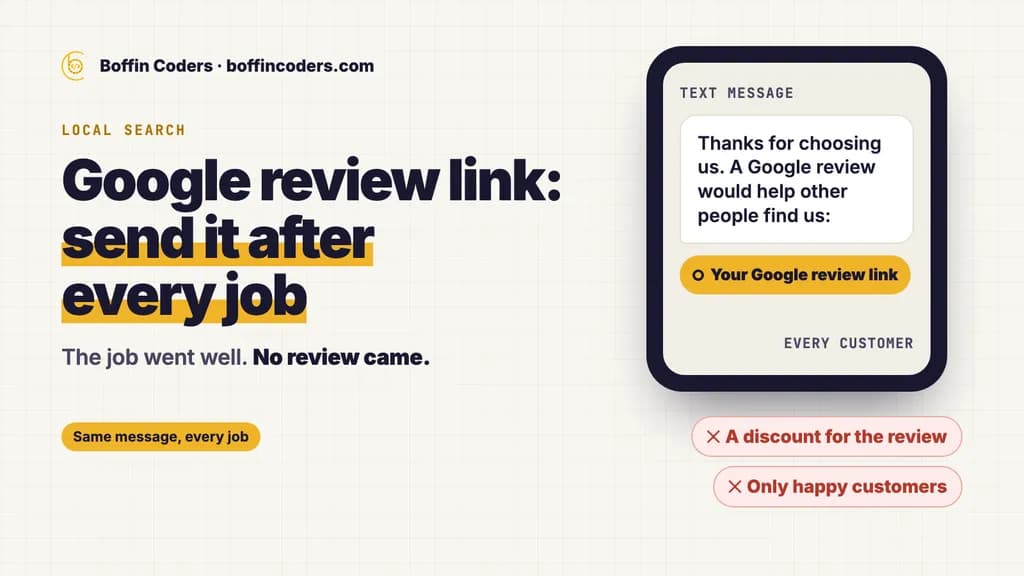
The job went well, the customer said thank you, and no review came. Your Google review link fixes the asking part: open your Business Profile, select Read reviews, then Get more reviews, and copy the link, or save its QR code on a computer. The link alone changes little. What gets more Google reviews is one short message with that link, sent to every customer after every job, with no reward and no filter.
Those shortcuts are still on the first page of Google. On 23 November 2026 we read the 47 guides that opened from Google's results for "google review link", "how to get more google reviews" and "get more google reviews" in the US and the UK. Five of them tell you to offer a discount for the review, which Google's own help page calls strictly prohibited. One more advises sending four and five star answers to Google and the rest to a private form. Only 17 of the 47 say that asking only happy customers breaks Google's rules, and only 4 mention its rule against pressuring customers to review while they are still on your premises. The steps below keep you inside those rules, and they work the same way for a clinic, a salon, a plumber, a restaurant or an accountant.
Where is the Google review link in your Business Profile?
The Google review link sits in the same place for every business. Google calls it a link to request reviews, and it opens the review form for your profile.
- Sign in to the Google Account that owns or manages your Business Profile, and open the profile.
- Select Read reviews, then Get more reviews.
- Select Copy to copy the link. The same panel offers email, WhatsApp and Facebook as ways to share it.
- Open the link on your own phone and check that the form names your business, not one with a similar name nearby.
You do not need a link generator or a Place ID tool for this. Of the 47 guides we read, 22 mention Google's Place ID, usually to build the link by hand. That route still works, but the button above gives you Google's own link in a few clicks. If you cannot see your profile's management options, check that you are signed in with the account that manages it. If Google is asking you to prove the business is real again, the GBP video verification guide covers that step, and you will need a verified profile to reply to reviews anyway.
How do you make a QR code for Google reviews?
You make the QR code in the same panel, but only on a computer. Google's help page says review QR codes can currently be generated only in a computer browser, not on mobile devices. Only 7 of the 47 guides we read mention this, so it is worth knowing before you search your phone for it.
On a computer, open your profile, select Read reviews, then Get more reviews, right-click the QR code and choose Save image as. Print it once and put it where customers already look when the job ends. Google suggests receipts, thank-you emails, the end of a chat and a printed card in the shop.
Where the job ends | Where the code or link goes |
|---|---|
At a counter or front desk | A printed card by the card reader, and the receipt |
At the customer's home | The invoice, and the job sheet you leave behind |
In a booking app or by email | The confirmation or thank-you email |
In a chat or on the phone | The last message of the conversation |
A printed code works for people who are still in front of you. The link works for everyone else, and for most businesses that is most customers.
How to get more Google reviews: when should you ask?
Ask at the moment the customer feels the job is finished, and ask every customer at that moment. The honest answer to how to get more Google reviews is a request that goes out every time, so nobody has to remember it.
For a clinic or a salon, that moment is the end of the appointment, so the request goes out the same day. For a plumber, an electrician or a cleaner, it is when the invoice is sent or paid. For a restaurant, it is the receipt. For an accountant or a solicitor, it is the email that delivers the finished work. For an online shop, it is after the order has arrived, not when it ships.
Tie the request to something your business already does at that point, such as the invoice, the booking system's follow-up or the delivery email. A request that is part of an existing step goes out every time. A request that needs someone to remember it goes out on quiet days only.
One reminder a few days later is reasonable for someone who did not open the first message. After that, stop. Asking every customer steadily also keeps your reviews arriving at a normal pace. Google's policy lists unusual volumes or patterns of reviews as a sign of rating manipulation, so sending the link to every customer you have ever had on one day is a risky way to catch up.
How to ask for Google reviews: what should the message say?
The message should be short, personal and neutral: who you are, what you did, the link, and nothing about stars or wording. Here is how to ask for Google reviews by text:
1Hi [first name], thanks for choosing [business name] for [the job]. If you have a minute, a Google review would help other people find us: [your Google review link]. Thank you, [your name]And by email, where you have a little more room:
1Subject: Thank you from [business name]
2
3Hi [first name],
4
5Thank you for choosing us for [the job]. If you have two minutes, we would value a Google review. It helps people nearby decide whether to call us.
6
7[your Google review link]
8
9[your name], [business name]
Send the same message to every customer, happy or not. What the message must not do is ask for five stars, offer anything in return, or tell the customer what to write. Google may ask a reviewer of a service business which service they had, so you do not need to ask them to name it.
What does Google not allow when you ask for reviews?
Google allows any business to ask customers for reviews of a genuine experience, as long as it offers no reward and does not try to steer the rating or the words. Its policy for Google Maps content lists the rest, and this table puts each rule next to the shortcut it rules out.
What owners try | What Google's policy says | Do this instead |
|---|---|---|
A discount, coupon or free service for a review | No incentives in exchange for posting, changing or removing a review | Ask without a reward |
Send the link only to customers who said they were happy | No discouraging negative reviews or selectively asking for positive ones | Send the same request to every customer |
Ask customers to review in the shop, while they wait | No requiring or pressuring customers to review while on the premises | Hand over the card or send the link later |
Ask customers to mention a service, a keyword or a staff member | No requesting that specific content be included | Leave the words to the customer |
Give staff a target of reviews each month | No asking staff to collect a certain number of reviews | Make the request part of the process |
Reviews from staff, family or a partner business | No content based on a conflict of interest | Ask customers only |
The cost of getting this wrong is the reviews themselves. Google says incentivised reviews are removed from Maps, and reviews removed for policy violations are not restored. A business that offered a discount for reviews last year can lose those reviews this year. Fake reviews are a different problem, and the guide on how to report fake Google reviews covers what to do when one appears on your profile.
Why do some Google reviews never show up?
A review can be missing for a few ordinary reasons, and most are not your fault or the customer's.
- The customer was not signed in. Google requires a Google Account to leave a review, and notes that customers can create one with an email address that is not Gmail.
- Google is still checking the review against its policies, which can take a few days.
- The customer's phone or Maps app is out of date, and Google recommends updating the app.
- The review broke a policy and was removed. Google does not restore reviews removed for policy violations.
- Google has switched reviews off for the profile or its category for a while, which it can do, and reviews are available only in certain countries and categories.
If a customer tells you they left a review that never appeared, ask first whether they were signed in when they wrote it, then give it a few days before you look again.
Should you reply to every Google review?
Reply to every negative review and to the positive ones where you have something real to say. Google's own advice is to make replies count: rather than the same thank-you under every review, reply where you can add a helpful update or answer a question, keep it short, and never use a reply to offer a deal.
Your reply is checked against Google's policies before it is posted, which usually takes up to 10 minutes but can take up to 30 days. It appears under the review as your business, not under your personal name, and the customer is notified. They can still change their review after reading your reply.
For a negative review, Google's advice is plain: do not share the reviewer's private details, ask them to contact you by phone or email if the situation is complex, explain what you can and cannot do, and apologise when it is right to. Every future customer who opens your profile can read that reply.
Put the request on the step that ends every job, and reply where a reply helps. That keeps genuine reviews arriving inside Google's rules. If you would rather have that request go out after every job without anyone having to remember it, our local SEO agency work sends a review request after every job, drafts each reply for you to approve and keeps the profile in your name.
Keep reading
Pinkal Rana
SEO and AI Search Lead
Pinkal leads search strategy at Boffin Coders, from classic SEO to how brands get named in AI answers on Google, ChatGPT and Perplexity (AEO and GEO). Pinkal writes about what actually gets a business cited by AI search, using data from real checks.
Frequently Asked Questions
You find your Google review link in your Business Profile. Sign in to the Google Account that manages the profile, open it, select Read reviews, then Get more reviews, and select Copy. The same panel lets you share the link by email, WhatsApp or Facebook, and on a computer it also shows a QR code you can save and print.
To get more Google reviews within Google's rules, send the same short request with your review link to every customer, at the moment the job ends, with no reward attached. Do not ask only the customers you think are happy, do not pressure people while they are still with you, and do not tell them what to write or which stars to give.
No, you cannot offer a discount in exchange for a Google review. Google's policy bans payment, discounts, free goods or free services in exchange for posting, changing or removing a review, and its help page calls this strictly prohibited. Google removes incentivised reviews from Maps, and reviews removed for policy violations are not restored.
You cannot make a Google review QR code on your phone because Google currently generates review QR codes only in a computer browser, not on mobile devices. On a computer, open your profile, select Read reviews, then Get more reviews, right-click the QR code and choose Save image as. You can still copy the review link on a phone.
Customers do not need a Gmail account to leave a Google review, but they do need a Google Account and must be signed in to it. Google notes that a Google Account can be created with an email address that is not Gmail. If a customer says their review never appeared, ask first whether they were signed in when they wrote it.
Not answered here?
Need this built?
We build websites and apps for businesses, and work behind digital agencies as their development team. Tell us where things stand on a 20-minute call.